Getting started
Greeble Foundry builds sci-fi surface detail from procedural presets and exports it as texture maps. The square preview shows one tile, flat or in 3D. Changes show up there after a moment.
Pick a mode at the top, choose presets in Mix, open a preset to adjust it, set the shape and look, then export. Every result comes from a seed number. The same seed and settings always give the same tile. Random seed gives a new layout with the same settings, and the arrows step through seeds one by one.

Share this variant under the preview copies a link that opens exactly what the preview shows.
Undo and redo are at the top right, also on Ctrl+Z and Ctrl+Shift+Z. Reset returns every setting to the defaults. Your Library is kept, and Undo brings the settings back.
Modes
The switch at the top picks what you make:
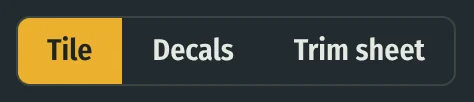
- Tile: one seamless square that repeats in every direction, for surfaces and displacement.
- Decals: one element per seed on a transparent background, for alphas, stamps and decal sheets. Export takes a whole set at once.
- Trim sheet: horizontal strips that repeat left to right, for long thin faces.
Mix, Look and Library work the same in every mode. The second tab follows the mode: Shape, Decals or Strips. The Export tab shows only what the current mode exports. The mode is saved with projects and links.

Free and Pro
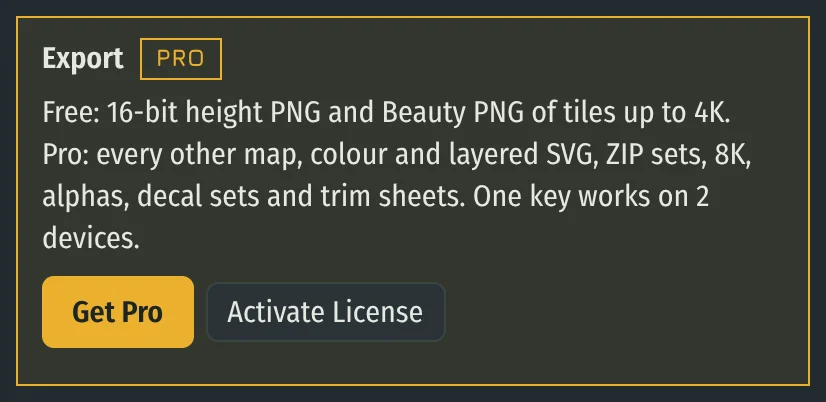
Free: every preset, mix and preview mode, plus the 16-bit height PNG and the beauty PNG of a tile up to 4K.
Pro: every other map (EXR, normals, AO, ID, layer ID, emissive, albedo, panel paths), layered and colour SVG, full ZIP sets, 8K, alphas, decal sheets, trim sheets and future updates. Decals and trim sheets have their own modes at the top. Their previews are free, and every export from them is part of Pro. Buy Greeble Foundry Pro on Gumroad, then press Activate License in the Export tab and paste the key from your receipt. One key works on 2 devices.
Mix
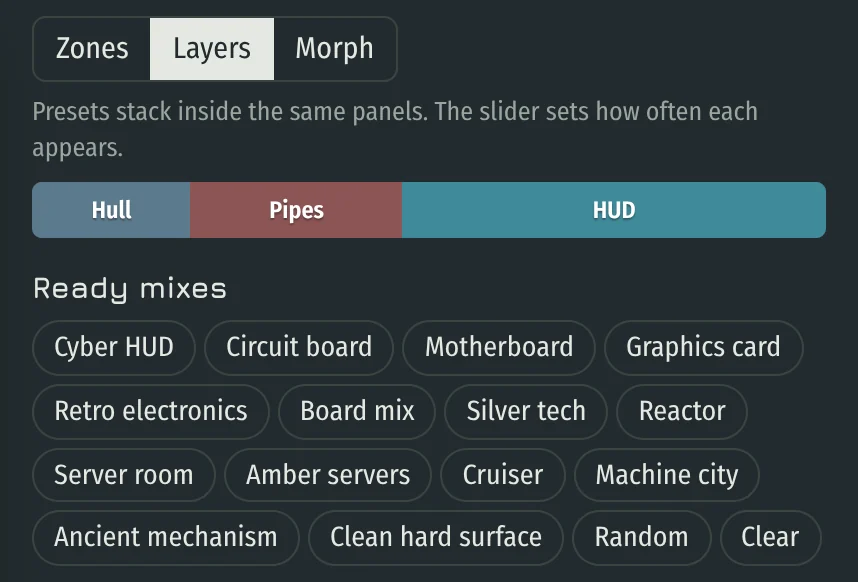
Each preset has a slider from 0 to 100%. Click a preset name to switch it between 0 and 100%. The coloured bar above the list shows the current blend.
The three mix modes decide how presets combine:
- Zones divides the tile into regions; each region belongs to one preset. The slider sets its share of the area.
- Layers lets several presets fill the same panels. The slider sets how often a preset appears.
- Morph blends the parameters of all presets into one hybrid.
A ready mix loads a set of presets with its colours, shape and seed. Random picks two to four presets with random amounts. Presets at 0% are listed under More presets.
Preset settings
Press the arrow on a preset card to open it. The card shows the settings of that preset's element, for example bundles, radius and bends for Pipes. Tick All parameters to see every setting, not only the main ones.
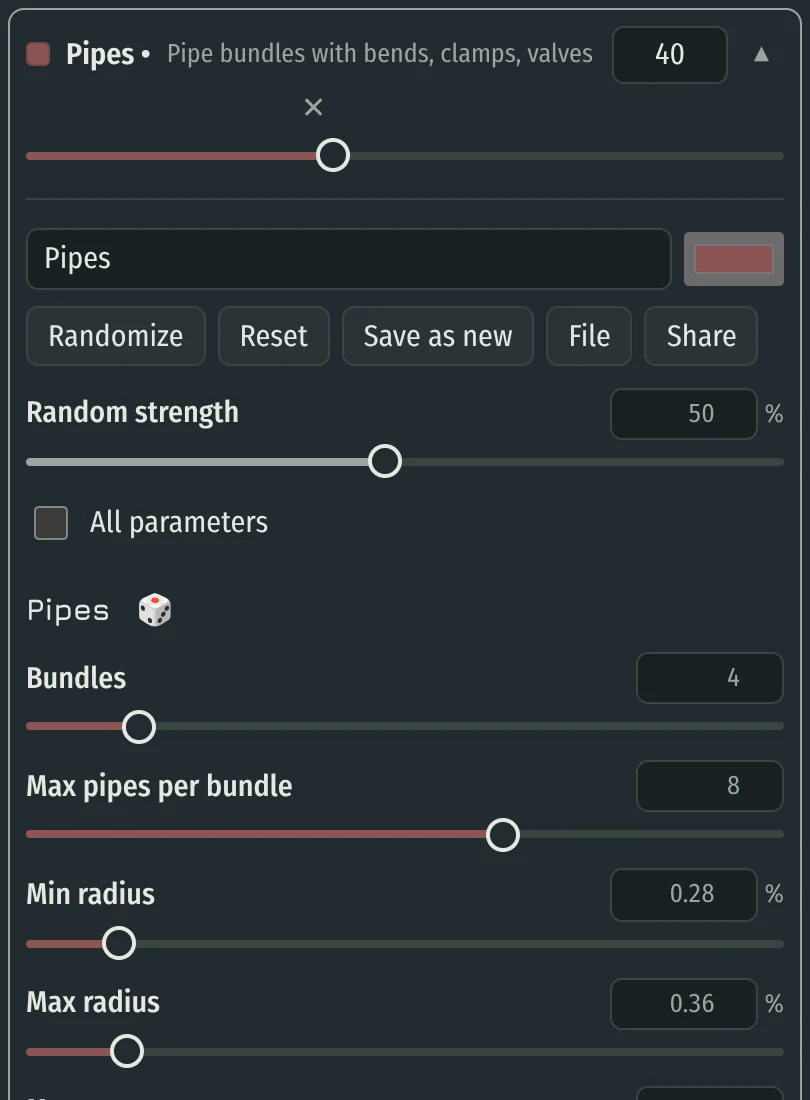
The dice next to a heading randomizes that block. Random strength sets how far values move. Randomize changes the whole preset, Reset restores a built-in preset, Save as new stores a copy in your Library and File downloads it.
Every preset also has a Panels block: panel size inside its zones, seams, bevel width and profile, bevel rounding, corner radius and corner cuts. Corner cuts can be uneven and limited to one, two or all corners.
Changing one preset never reshuffles the others. Only pipes affect their neighbours, because other elements make room for them.
Elements
- Kitbash
- Layered plates plus packed modules: blocks, towers, tanks, capsules, slots, connectors, rails, brackets, heat sinks and armour plates. Neatness gives regular splits and matching heights.
- Vents
- Recessed grilles with slots, louvers or perforation. Pitch and margin are ranges; each panel picks one value and keeps it even.
- Circuit
- Chips with fan-out traces, parallel buses with 45° bends, vias, capacitors, copper pour, silkscreen and edge fingers.
- Dot grids and Racks
- Hole, bump, square, cross and LED grids; server racks with LED rows, level bars, drive bays and vent strips.
- Hatches
- Hatches, turbines, portholes and dials, each with its own size.
- Hex tiles, City blocks, Truchet
- Hexagonal tiling with height waves; top-down city lots with setbacks and rooftops; arc, diagonal, wall and double-arc mazes.
- HUD
- Flat glowing graphics: dials, targets, frames, charts, waves and grids with digits. It adds light only, never relief. Set three colours, how much of the graphics takes the second and the third colour, and how many round and rectangular elements each panel gets.
- Pipes
- Bundles with real bends, clamps, couplings, valves and end blocks. They route first and other elements avoid them.
- Rivets and seam lines
- Details along and across panel edges.
Where an element offers types as tick boxes, every ticked type is used and mixed.
Shape and zones
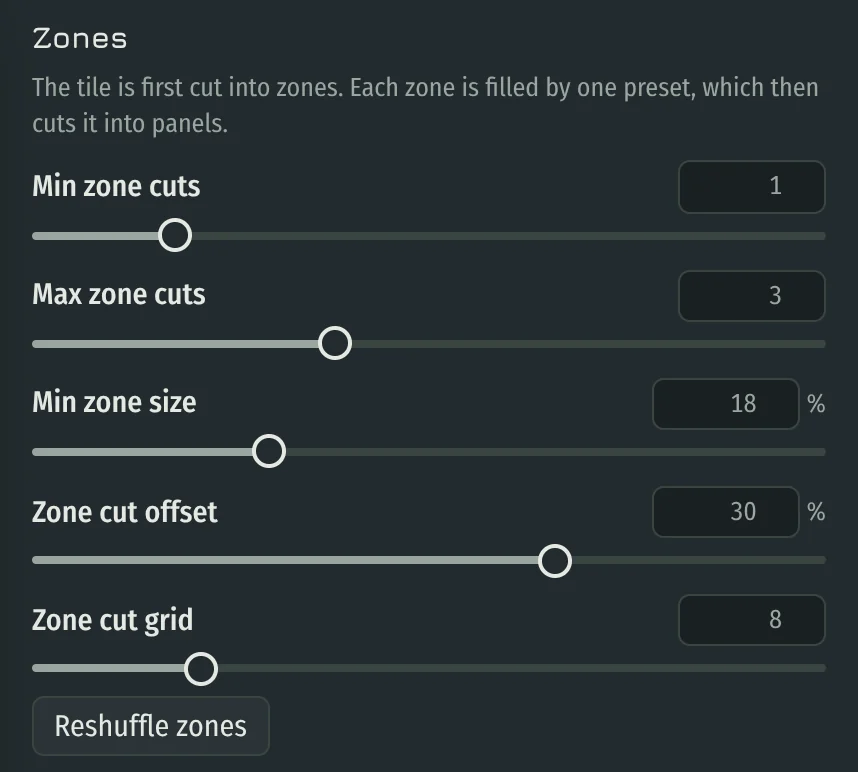
The Shape tab belongs to the Tile mode. Zones control the first cut of the tile: minimum and maximum cuts, smallest zone and how the cuts snap. Reshuffle zones gives a new zone layout and keeps everything else.
The multipliers act on top of every preset: detail density and scale, panel cuts, seam width, bevels, panel relief, detail height, accents and fine micro relief. The Decals and Strips tabs have the same multipliers.
Decals
Every seed gives a new decal from the current mix. The arrows next to Seed step through them one by one, and Random seed jumps to a new set.
Element shape sets the outline: rectangle, rounded, chamfered, octagon, disc, pill or ring. Auto picks one per seed, mostly plates. The parts inside are cut to the outline, and the outline gets a bevel, so the edge reads in height and normals. Some decals also get a rim, some with bolts. Margin sets the empty space around the decal. Edge falloff fades the height near the outline; the opacity edge stays sharp. Element scale zooms in on its parts. In Zones mode each decal takes one preset of the mix. The Opacity view shows its mask.
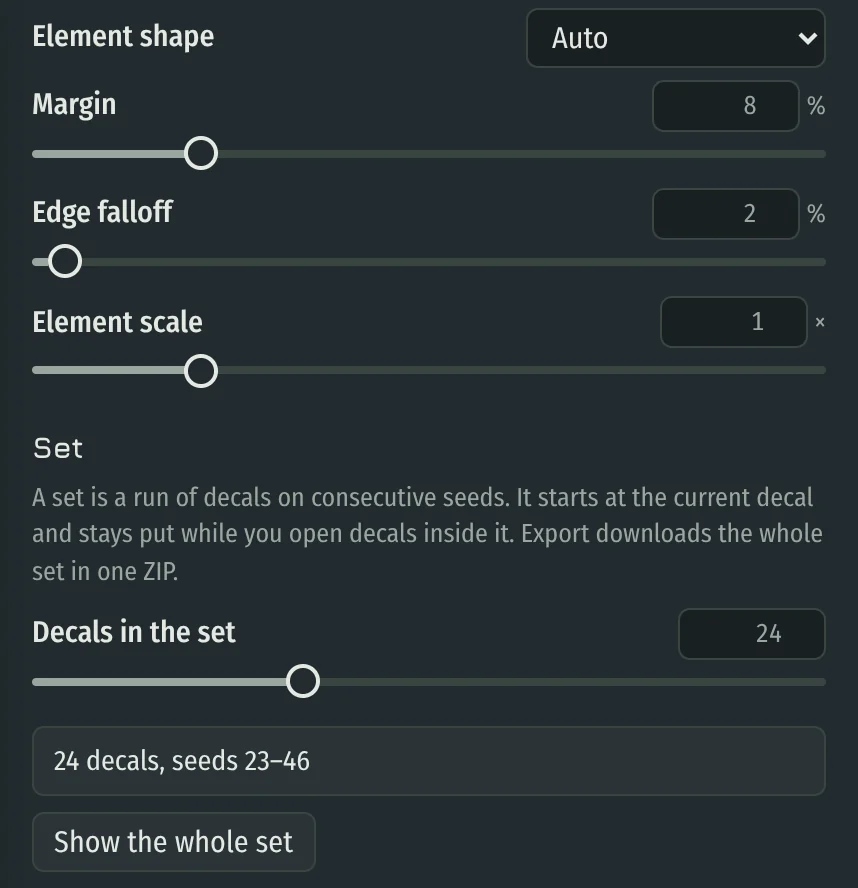
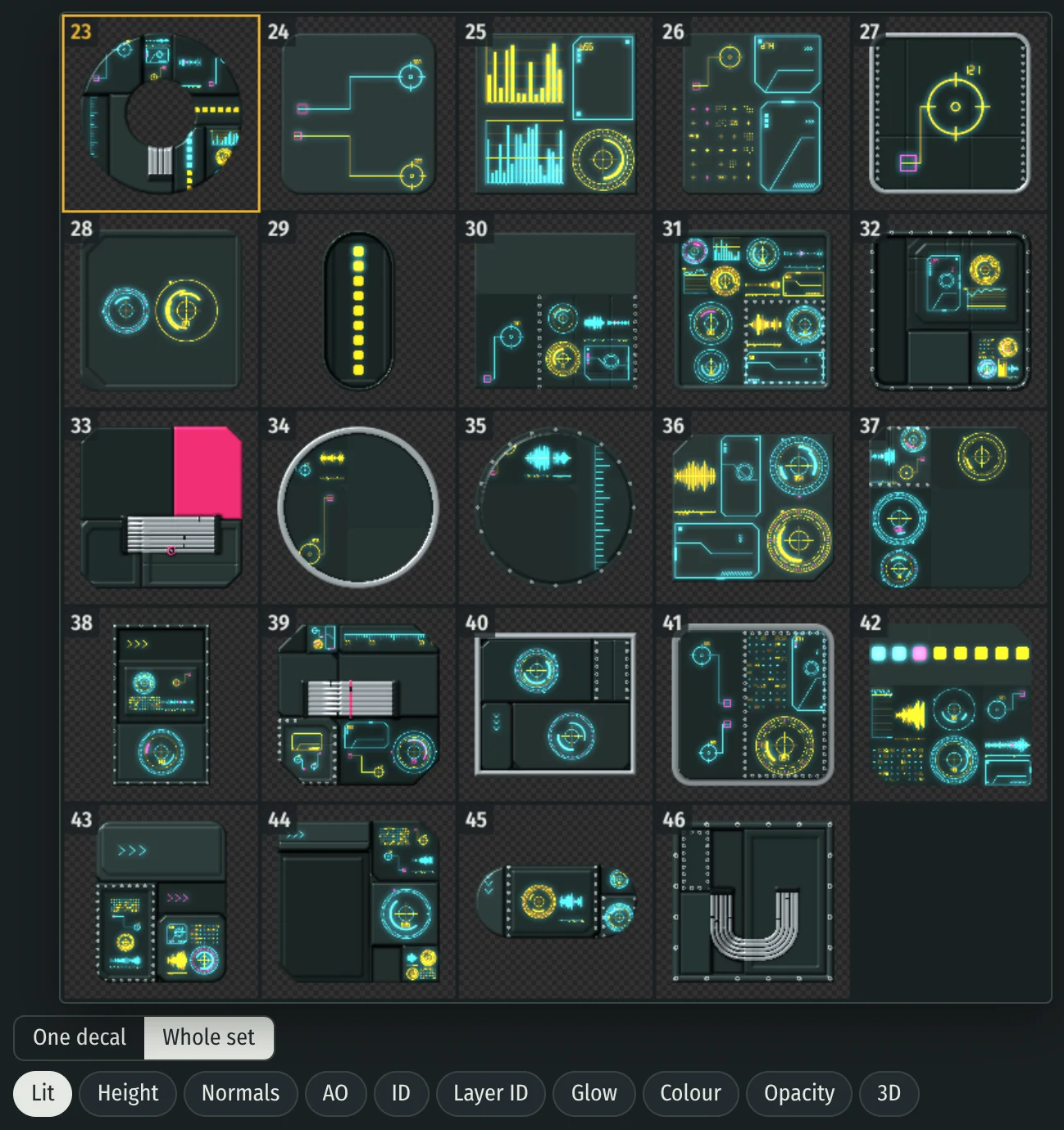
The set is a run of decals on consecutive seeds, 4 to 64 in all. It starts at the current decal and stays the same as long as the open decal is part of it. Press Whole set under the preview to see the decals of the set side by side. Click one to open it large. While the whole set is shown, the arrows move to the previous or next set.
Trim sheet
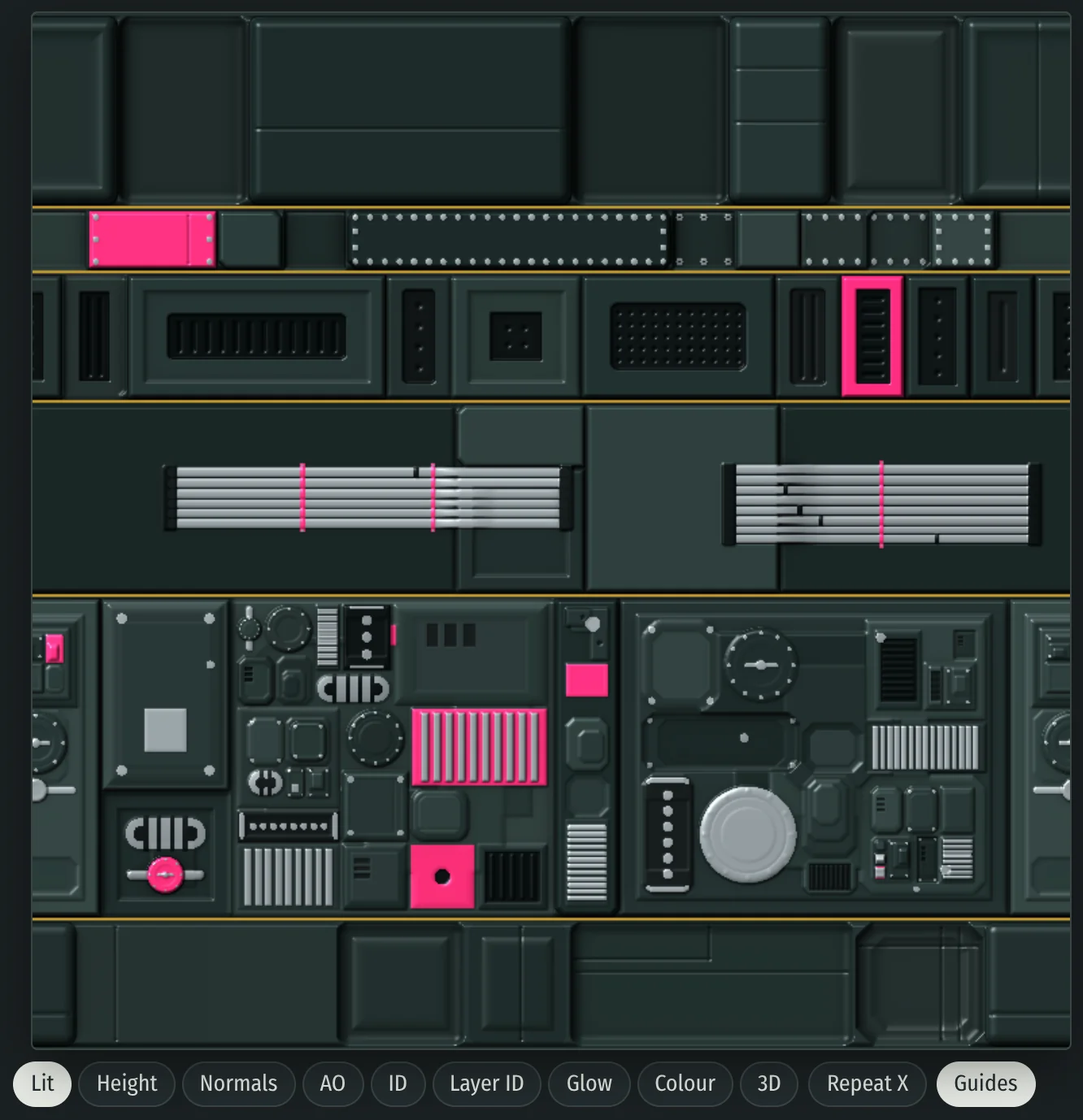
A trim sheet splits the square into horizontal strips, up to 12. Each strip repeats left to right and stops at its top and bottom border, so long thin faces can be mapped onto it. The Strips tab lists them. A strip has a name, a height, a seed and either one preset or the current mix. Add, remove and reorder strips with the buttons on each card. Heights are in pixels at the export size or in percent of the sheet. Snap keeps the borders on multiples of 8 px or makes every strip a power of two. When you change a height, the strip below gives or takes the difference. Edge profile adds a bevel or a groove along the strip borders. Padding puts flat rows between the strips so mipmaps don't mix them.
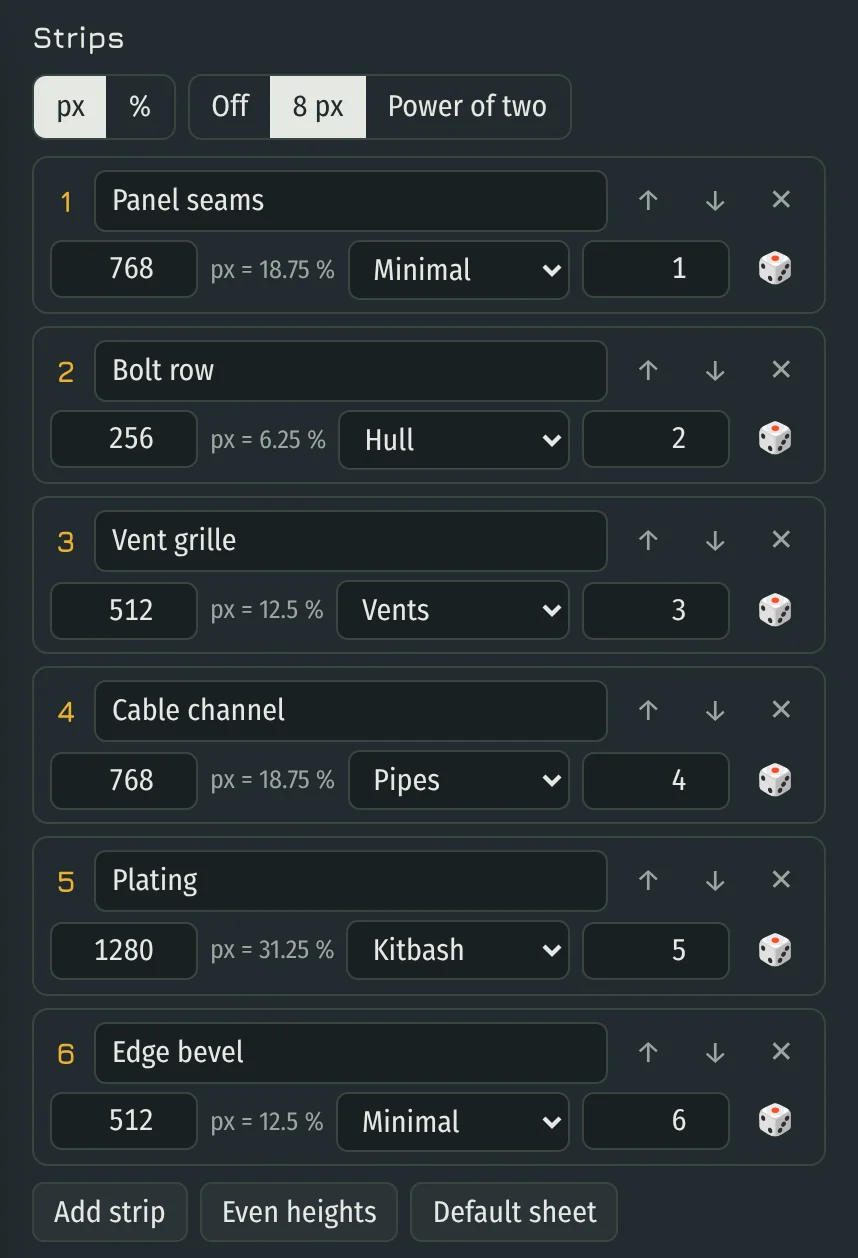
The seed in the top bar changes every strip. The dice on a strip changes only that strip. Under the preview, Repeat X shows two copies side by side and Guides marks the strip borders.
Look
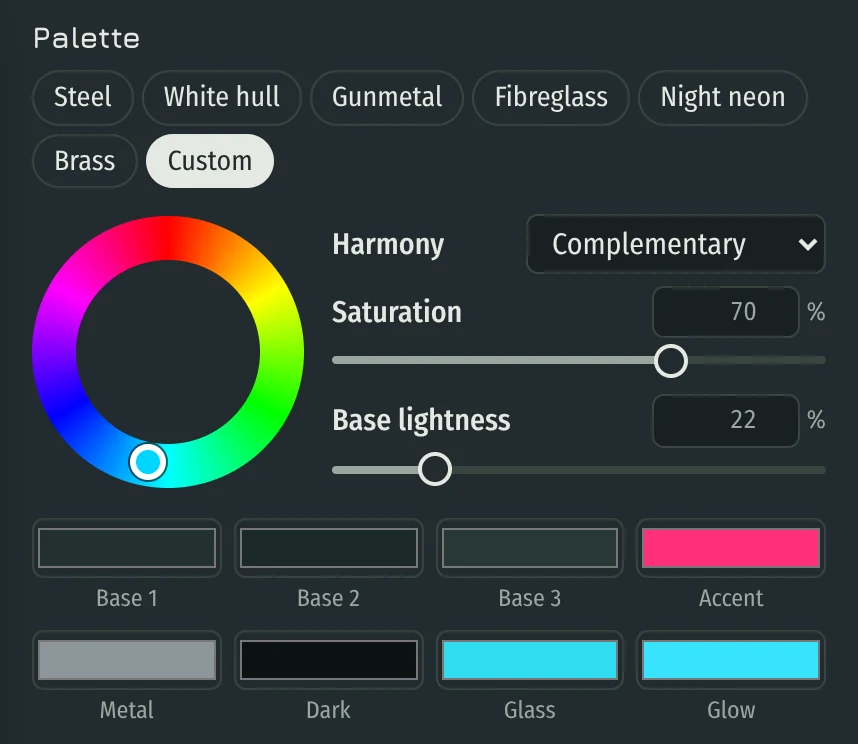
Pick a built-in palette or make your own: turn the colour wheel and choose a harmony, then adjust saturation and base lightness. Click any of the eight swatches to change only that colour.
Relief depth changes normals, AO and shading, also in exported files. Drag on the preview to move the light, or set azimuth and elevation precisely. The Preview selector in the top bar sets the resolution of the main preview window only; lower is faster on slow machines. Export resolution is set in the Export tab.
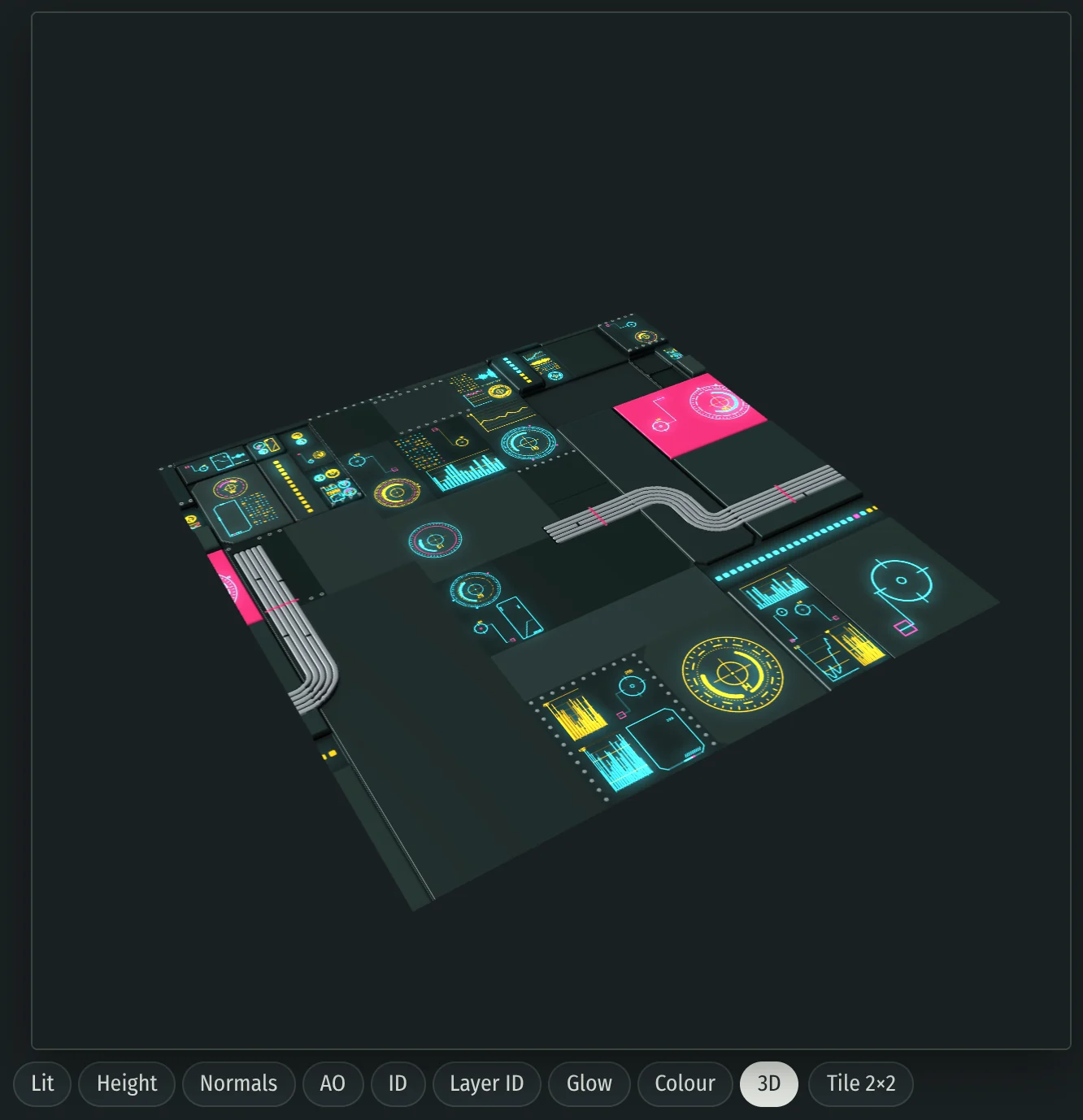
The 3D view under the preview shows the relief as a surface with the palette, light and glow. Drag to turn it, scroll to zoom, double-click to reset the camera. Relief depth sets the height, the same as in the normals, and Detail boost shows here too. Tile 2×2 and Repeat X show the copies in 3D, and a decal is cut along its opacity. The 3D view is free and needs WebGL.
Export
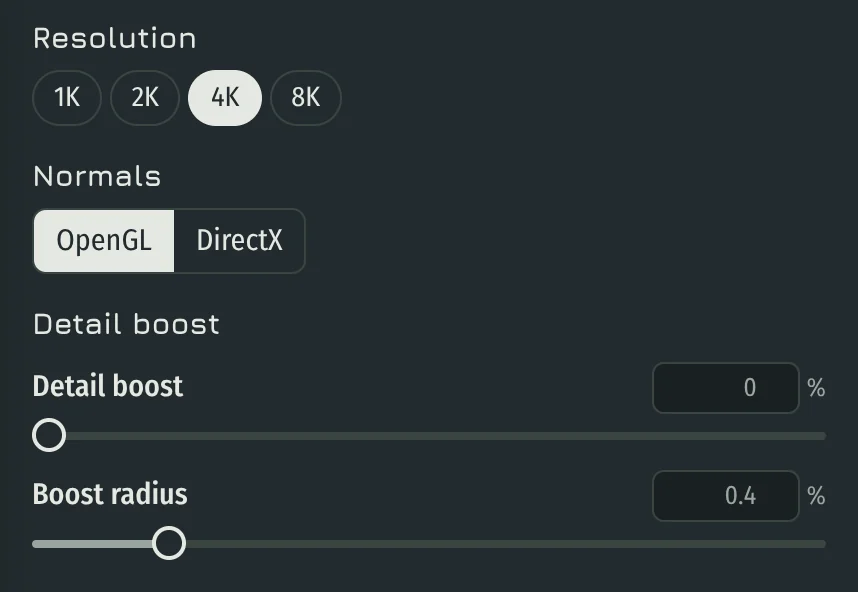
Export renders exactly what the preview shows, at 1K to 8K. The tab shows only what the current mode exports. The free version exports the 16-bit height PNG and the Beauty PNG of a tile up to 4K. Everything else needs Greeble Foundry Pro. In the Tile mode, Seamless tile in the top bar makes the result repeat without visible joins. Check it with Tile 2×2 under the preview. File names hold the seed, the resolution and a four-character settings tag, so two exports of the same seed with different settings do not overwrite each other.
Detail boost makes small relief stronger in every mode. It adds the fine detail on top of the height without stretching the map again, so large shapes keep their height; detail that would go past black or white is softly held at the limit. Only detail narrower than about 2.4 times the boost radius grows (about 1% of the tile at the default 0.4): bolts, ribs, seams and narrow grooves. Flat ground next to a pipe, a panel or a box stays flat, with no dark moat around it. The height maps, normals, AO and the lit beauty image all use the boosted relief, so a set from one ZIP matches. Albedo, ID, Layer ID and glow stay as they are. The Height, Normals, AO, Lit and 3D views show the result.
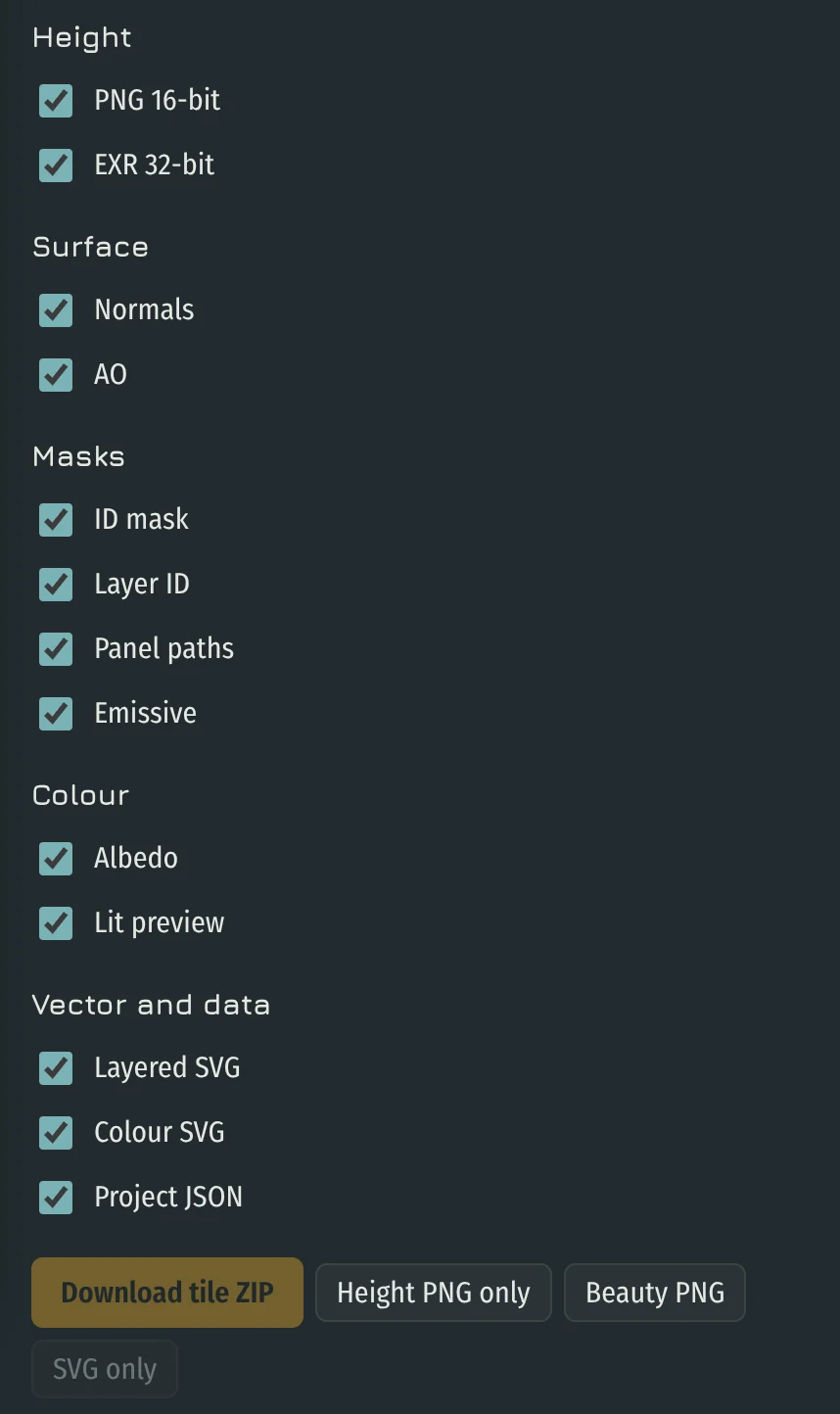
Tile and Trim sheet: tick the maps, then press Download tile ZIP or Download trim sheet ZIP. A trim sheet has _trim in the file names, and every trim sheet export needs Pro. Normals, AO and detail boost repeat left to right and stop at the strip borders. The ZIP also holds _trim.json with the name, preset, seed, pixel rows and V range of every strip. v counts from the top edge; vBottomLeft is for apps with the UV origin at the bottom left, such as Blender and Unity.
- Height: 16-bit PNG (65 536 levels) and 32-bit float EXR, inside the ZIP.
- Normals: OpenGL (green up) for Blender, Houdini and Substance; DirectX (green down) for Unreal and 3ds Max.
- AO, ID mask, emissive mask, albedo and a lit beauty image. The ID mask also comes as an SVG with the same colour per part.
- Layer ID: one flat colour per layer (panels, modules, details, rivets, pipes), as a PNG without antialiasing and as an SVG with the same colours, grouped by layer.
- Panel paths: the grooves between panels as a black-and-white map. The layered SVG holds the same lines as editable vector paths in the panel-paths group.
- Layered SVG: vector shapes grouped by layer, tones taken from height.
- Colour SVG: the full-colour picture as vector, with palette, board finishes and glow colours, grouped by layer. SVG only downloads this file.
- Beauty PNG: only the lit colour picture, exactly as the preview shows it, at the chosen resolution.
- Project JSON: every setting needed to reproduce the result.
Decals (Pro): Whole set renders every decal of the set into one ZIP with the Download button under it. PNG files gives separate maps for each decal at the export resolution. Atlas puts all decals on one sheet per map within the export resolution, with the columns and cell padding you set, plus a JSON file with the pixel and UV rectangle of every decal. Maps: 16-bit height on black, normals, opacity, and albedo or lit colour as RGBA with alpha. Decal sets go up to 4K.
Height scale sets how the height maps of a set compare. Shared uses one scale for the whole set: the tallest decal reaches white and a flat one stays dark, so one displacement strength fits every decal and matches its normal map. Per decal stretches each height map to the full range on its own, like ZBrush alphas.
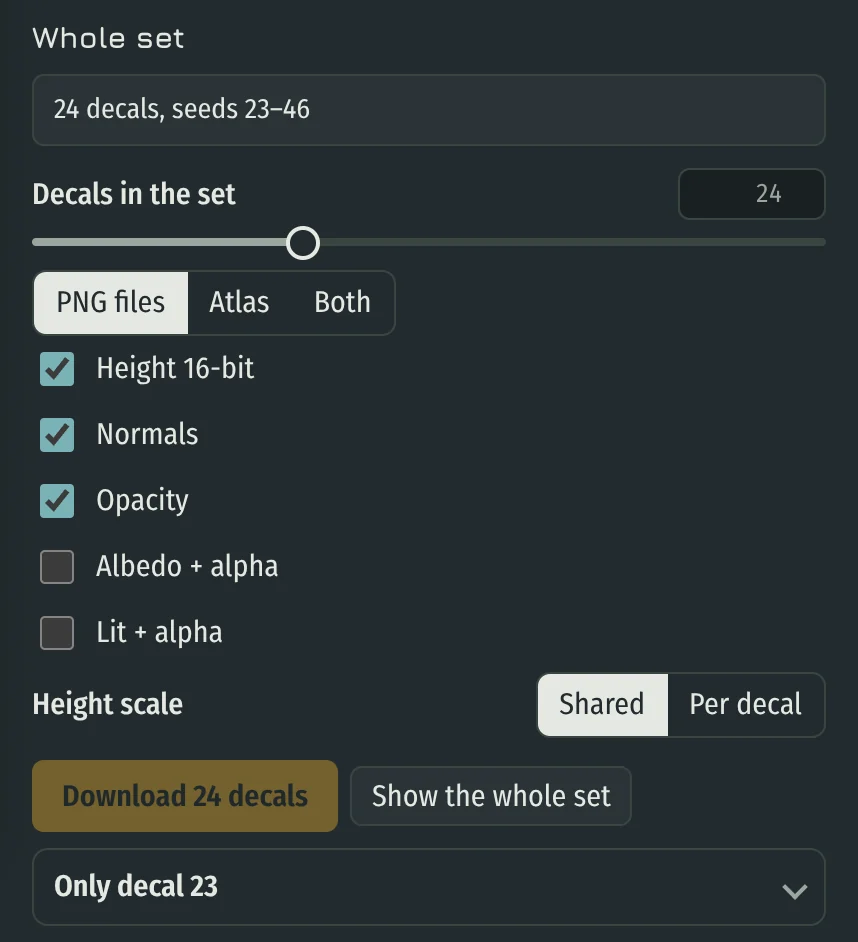
Only decal, folded under the set, exports the decal in the preview with any of the maps listed above, plus an opacity map. Its files have _decal in the name. A decal set ZIP is named after the first seed of the set, and the project file inside opens the same set.
8K uses about 1.5 GB of memory during export. Close other heavy tabs first.
Library and files
Save the current result as a mix in your browser or download it as a project file. Your own presets are listed with Edit, File and Delete. Open file loads a project, a preset or a whole library.
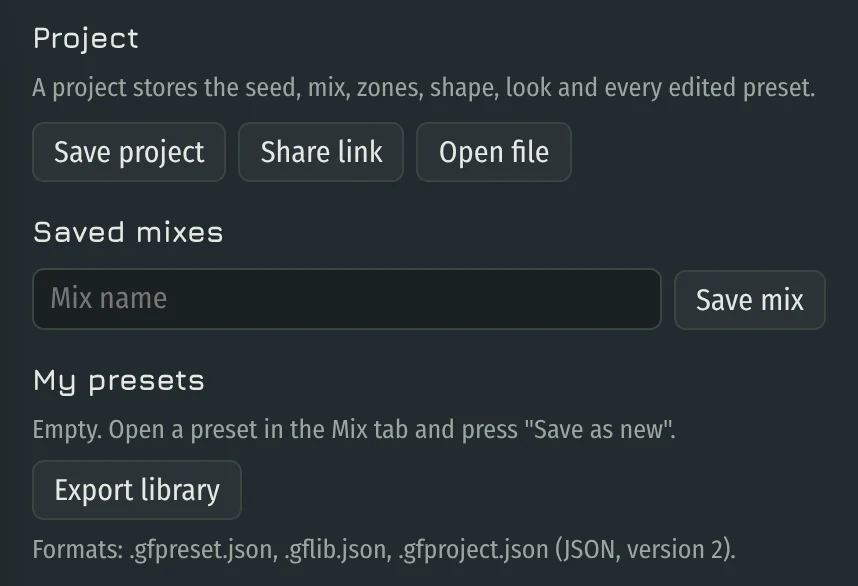
Share link copies a short link that opens your current setup. Preset cards and saved mixes have their own Share button. Whoever opens the link can change the setup and export it as usual, free or with Pro.
Formats: .gfpreset.json for one preset, .gflib.json for a library, .gfproject.json for a complete project.
Share
Press Share this variant under the preview. Type a title and, if you like, your name, then press Copy link. The link opens exactly this result: mix, shape, look, seed and mode. Only the settings are sent. In chats and posts the link shows a picture the server renders from them, with your title and name. Whoever opens it can change it and export as usual, free or with Pro. You can make up to 60 links a day.

Tips
- Start from a ready mix and change one preset at a time.
- Use the height map for displacement and the normal map for fine detail. Set relief depth to match your scene scale.
- The ID mask gives quick material selections in Substance Painter or in a shader.
- The HUD preset with the emissive mask gives you light panels.
Questions
- Is Greeble Foundry free?
- Yes. All presets and previews are free, and so is export of the 16-bit height PNG and the beauty PNG up to 4K. Pro adds the other maps, SVG, ZIP, 8K, alphas, decal sets and trim sheets.
- What do I get with Pro?
- 32-bit EXR height, OpenGL and DirectX normals, AO, ID mask, layer ID, emissive, albedo, panel paths, layered and colour SVG, full ZIP sets, 8K, alphas, decal sheets and trim sheets. Future updates are included.
- Can it make trim sheets?
- Yes. Switch the mode at the top to Trim sheet. You get up to 12 strips that repeat left to right, each with its own preset or the current mix, and a JSON file with the pixel rows and UV range of every strip. The preview is free; trim sheet export is part of Pro.
- Can I use the maps commercially?
- Yes. You can use everything you export in commercial work, and you can sell the exported maps, alphas and decals inside your own asset packs. You can't resell or share Greeble Foundry itself or your license key.
- How many computers can I use?
- One key works on 2 devices. If you get a new computer, move the key yourself in the Export tab, once every 30 days.
- Which apps does it work with?
- Anything that reads PNG or EXR: Blender, ZBrush, Substance 3D Painter and Designer, Unreal, Unity, Houdini, Cinema 4D, KeyShot.
- Is it a Blender addon?
- No. It runs in a browser tab and exports files. You plug them into Blender or any other app.
- How is this different from JSplacement?
- Same idea: procedural greeble maps. The differences are presets you can steer (hull plating, pipes, vents, circuits, HUD), seamless tiles, normals, AO and ID masks, SVG export and alphas. JSplacement is free and works offline, so try both and use what fits.
- Is anything uploaded?
- Only what you share. A share link stores the settings, with the title and name you typed, so the link can open them. Generation and export happen on your device.
- Why is export slow at 8K?
- An 8K map has 67 million pixels. 4K is usually enough and exports several times faster.
Support
Questions, bug reports and feature requests: Discord. I read everything and answer there.